

The short answer
If your website is not showing up on Google, it is usually new and not yet crawled, a setting is telling Google to leave it out, or Google cannot reach it. Search site:yourdomain.co.uk, then check with URL Inspection in Google Search Console. If Google has your site but shows others first, you have a ranking problem.
Find out what is keeping your site out of sight Run the free instant website check →
Why is my website not showing up on Google at all?
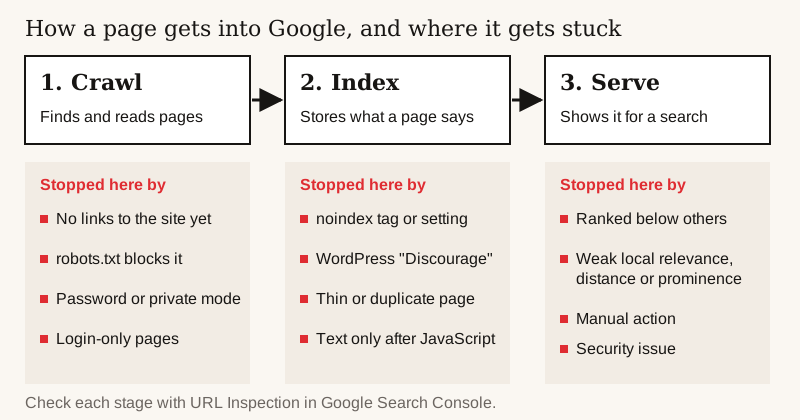
Google Search works in three stages. It crawls the web to find pages, it indexes them (stores what each page is about), and it serves results when someone searches. Google says plainly that not every page makes it through every stage, and that it does not guarantee to crawl, index or show any page.
So “not showing up” can mean one of three things:
- Google has not found the site. Common with new sites that nothing links to yet.
- Google found it but has not indexed it. Often because a setting tells Google not to, or because Google could not reach the pages.
- Google has indexed it, but you do not see it for the searches you care about. That is a ranking problem, and it needs different fixes.
Work out which of the three you have before changing anything. In our experience, owners sometimes rewrite pages or pay for adverts when the cause is a single setting.
Why can’t I find my own business name on Google?
Searching your own name and searching for your service are two different tests. Your name tests whether Google knows the site exists. “Plumber in Stockport” tests ranking, which is covered further down. Check the name first. If that fails, one of these is usually why:
- Your Business Profile shows, but your website does not. The profile on the map and your website are separate, and Google can show one without the other. Make sure your Google Business Profile links to your website, then run the checks below on the site.
- The domain is new. Google finds pages by following links and reading sitemaps, and a brand new address has few links pointing at it. Crawling can take a few days to a few weeks.
- Your name is also a common phrase. If you trade as “Green Gardens” or “Premier Building Services”, Google may show pages about the phrase, directories or similarly named firms. Try your name in quotes with your town. Make sure the exact name is in your home page title and written in plain text on the page, and spelt the same way on every profile.
- You are checking from your own browser. Google says what it shows can depend on the searcher’s location, language and device (How Search works), and can be personalised from your Google Account (Search Help). Search again in a private window, and add your town, as a customer nearby would.
How do I check if Google has indexed my website?
- Do a site: search. Type site:yourdomain.co.uk into Google, with your own address. If pages come back, you are in the index. It does not show every indexed page, so a page missing here may still be on Google.
- Set up Google Search Console for your domain. It is where Google reports directly on your site. The platform notes below say how on each builder.
- Use URL Inspection on your home page and one key service page. “URL is on Google” means the page is eligible to appear in results. It does not guarantee that it will. If the page is not on Google, the tool gives a reason.
- Open the Page indexing report. It shows which of your pages Google has indexed and lists the ones it knows about but has not indexed, each with a reason.
- Request indexing once, then wait. Google says crawling can take anywhere from a few days to a few weeks, and asking again for the same page will not make it faster.
A sitemap, a list of your pages, helps Google discover them but promises no speed. Google’s starter guide says a sitemap “isn’t required”, and to focus first on making sure people know about your site. If your platform makes one, submit it anyway.
A made-up example. Say a decorator’s rebuilt site shows 10 addresses in the Page indexing report: 7 indexed and 3 not indexed.
Example only: reading the Page indexing report for a 10-page site
/old-home (a redirected address)
- Reason shown
- Page with redirect
- Action
- None. The redirect is doing its job.
/painting?ref=flyer
- Reason shown
- Alternate page with proper canonical tag
- Action
- None. Google indexes /painting instead.
/wallpapering
- Reason shown
- "Crawled - currently not indexed"
- Action
- Fix this one. The page is two lines long; add real detail, photos and prices, and link to it from the home page.
| Page | Reason shown | Action |
|---|---|---|
| /old-home (a redirected address) | Page with redirect | None. The redirect is doing its job. |
| /painting?ref=flyer | Alternate page with proper canonical tag | None. Google indexes /painting instead. |
| /wallpapering | "Crawled - currently not indexed" | Fix this one. The page is two lines long; add real detail, photos and prices, and link to it from the home page. |
How do I get my website on Google?
Nothing you can pay for or fill in guarantees a place: Google says it does not accept payment to crawl a site more often, and it does not promise to index any page. These four steps give it the best chance to find yours:
- Verify your site in Google Search Console. It is where Google reports on your site. Wix, Squarespace and Shopify each explain how in their help pages (see the platform sections below).
- Submit your sitemap in Search Console. Google’s starter guide says a sitemap “isn’t required”, but it helps Google discover your pages, and most builders make one for you (on Shopify it is sitemap.xml).
- Run URL Inspection on your home page and request indexing once. Google says crawling can take a few days to a few weeks, and asking again does not speed it up. “URL is on Google” means the page is eligible to appear, which is no guarantee that it will.
- Link the site from your Google Business Profile. Google’s profile help says you can share your website on your profile, and Google finds pages by following links. Add the address to your other profiles too.
My website is not showing on Google search: symptoms and fixes
What you see, what usually causes it, and what to do
site: search shows nothing; the site launched in the last few weeks
- Likely cause
- Google has not crawled it yet
- Fix
- Verify in Search Console, submit the sitemap, request indexing of the home page once. Link to the site from your Google Business Profile and other profiles, then wait.
URL Inspection says "URL marked ‘noindex’"
- Likely cause
- A setting or tag tells Google to leave the page out. Builders have “hide from search” options, which can be left on from before launch.
- Fix
- Turn the setting off or remove the tag, then request indexing. Google only sees the change when it next crawls the page.
WordPress site, and URL Inspection reports noindex on every page
- Likely cause
- The “Discourage search engines from indexing this site” box is ticked under Settings, then Reading
- Fix
- Untick it, save, then request indexing of the home page.
Report says "URL blocked by robots.txt"
- Likely cause
- The robots.txt file (yourdomain.co.uk/robots.txt) stops Google reading the page
- Fix
- Remove the block. A page blocked by robots.txt cannot even show Google its noindex tag.
"Crawled - currently not indexed" or "Discovered - currently not indexed"
- Likely cause
- Google knows the page but has not added it, or has not crawled it yet
- Fix
- Make the page clearly useful and distinct, link to it from your other pages, and give it time.
The page looks fine in a browser, but URL Inspection’s rendered HTML is missing the text, or the page sits behind a login
- Likely cause
- The words only appear after JavaScript runs, or the page needs a login. Google says it can only index content visible in the rendered HTML, that “not all bots can run JavaScript”, and it treats pages behind a login as ones it cannot crawl or index
- Fix
- Check the rendered HTML in URL Inspection. Put key words in the page itself (server-side or pre-rendering, which Google calls “still a great idea”), and keep pages you want found outside any login. See Google’s JavaScript SEO basics.
"Duplicate" or "Alternate page with proper canonical tag"
- Likely cause
- Google treats another address as the main version of the same page
- Fix
- Often fine. Check the version Google chose is the one you want.
"Not found (404)" after a redesign
- Likely cause
- Old addresses were removed without redirects
- Fix
- Set up permanent redirects (301 or 308), a permanent forwarding address from each old page to its new one.
"Page with redirect"
- Likely cause
- The old address already redirects
- Fix
- Usually fine. Check the redirect points to the right page and that page is indexed.
An entry in the Manual actions or Security issues report (rare)
- Likely cause
- A Google reviewer found spam, or Google found signs the site was hacked or could harm visitors
- Fix
- Fix every issue listed, then select Request Review in that report.
Indexed, but you cannot find yourself for your service and town
- Likely cause
- A ranking problem: the page is already indexed
- Fix
- See “Why is my website not ranking on Google?” below.
| What you see | Likely cause | Fix |
|---|---|---|
| site: search shows nothing; the site launched in the last few weeks | Google has not crawled it yet | Verify in Search Console, submit the sitemap, request indexing of the home page once. Link to the site from your Google Business Profile and other profiles, then wait. |
| URL Inspection says "URL marked ‘noindex’" | A setting or tag tells Google to leave the page out. Builders have “hide from search” options, which can be left on from before launch. | Turn the setting off or remove the tag, then request indexing. Google only sees the change when it next crawls the page. |
| WordPress site, and URL Inspection reports noindex on every page | The “Discourage search engines from indexing this site” box is ticked under Settings, then Reading | Untick it, save, then request indexing of the home page. |
| Report says "URL blocked by robots.txt" | The robots.txt file (yourdomain.co.uk/robots.txt) stops Google reading the page | Remove the block. A page blocked by robots.txt cannot even show Google its noindex tag. |
| "Crawled - currently not indexed" or "Discovered - currently not indexed" | Google knows the page but has not added it, or has not crawled it yet | Make the page clearly useful and distinct, link to it from your other pages, and give it time. |
| The page looks fine in a browser, but URL Inspection’s rendered HTML is missing the text, or the page sits behind a login | The words only appear after JavaScript runs, or the page needs a login. Google says it can only index content visible in the rendered HTML, that “not all bots can run JavaScript”, and it treats pages behind a login as ones it cannot crawl or index | Check the rendered HTML in URL Inspection. Put key words in the page itself (server-side or pre-rendering, which Google calls “still a great idea”), and keep pages you want found outside any login. See Google’s JavaScript SEO basics. |
| "Duplicate" or "Alternate page with proper canonical tag" | Google treats another address as the main version of the same page | Often fine. Check the version Google chose is the one you want. |
| "Not found (404)" after a redesign | Old addresses were removed without redirects | Set up permanent redirects (301 or 308), a permanent forwarding address from each old page to its new one. |
| "Page with redirect" | The old address already redirects | Usually fine. Check the redirect points to the right page and that page is indexed. |
| An entry in the Manual actions or Security issues report (rare) | A Google reviewer found spam, or Google found signs the site was hacked or could harm visitors | Fix every issue listed, then select Request Review in that report. |
| Indexed, but you cannot find yourself for your service and town | A ranking problem: the page is already indexed | See “Why is my website not ranking on Google?” below. |
To check robots.txt, open yourdomain.co.uk/robots.txt in your browser. A file that blocks the whole site has two short lines: “User-agent: *” (every crawler), then “Disallow: /” (the slash on its own means the whole site). If you see that pair, that is your problem.
Two rarer causes are quick to rule out in Search Console. A manual action means a human reviewer at Google decided pages break its spam policies, and Google says some or all of the site will then not be shown. A security issue means Google found signs the site was hacked or could harm visitors; those pages can carry a warning in results or in the browser. Open both reports; if they are empty, you can rule these out.
Google is clear that not every page needs to be indexed. A “Page with redirect” for an old address you deliberately redirected is the system working.
★★★★★
“… He took the vision for my brand, Byte & Batter, and built a premium, high-converting digital storefront entirely from scratch. …”
Why is my Wix website not showing up on Google?
In Wix’s SEO settings, check that “Let search engines index your site” is turned on. Turned off, it hides the whole site.
If the site shows but one page does not, check that page on its own. In the editor, open the page’s SEO basics and look at the “Let search engines index this page” toggle. Wix’s page SEO help says that when it is disabled, “Search engines will not index your page”. Turn it on and publish the site.
Then connect Google Search Console. Wix’s help centre says you can do it from the SEO Setup Checklist in your site’s SEO dashboard, and that it needs a Premium plan and a connected domain. Once it is connected, use URL Inspection on your home page to see what Google reports. A new site may simply not have been crawled yet.
Why is my Squarespace or Shopify website not showing up on Google?
Squarespace. It has two settings to check. The site-wide “Block Search engine crawlers” setting, under Settings, then Crawlers, must be off. And key pages must not have “Hide page from search results” turned on.
Squarespace has a built-in Search Console connection, under Analytics, then Search keywords, then Connect. Use it, then inspect your home page.
Shopify. If the store is still in private mode, with its password page on, it is hidden from visitors and from search engines. Shopify says the store must not be in private mode for Google to verify or crawl it.
To set up Search Console, Shopify’s help page has you paste Google’s verification meta tag into your theme’s theme.liquid file, or verify with a DNS TXT record instead. Then submit sitemap.xml in Search Console.
Why is my WordPress site not showing up on Google?
Go to Settings, then Reading, and check that the “Discourage search engines from indexing this site” box under Search engine visibility is unticked. WordPress’s own documentation says ticking it adds a noindex tag to the site, and that it is up to search engines to honour it.
SEO plugins and themes can also set noindex page by page. If the box is clear, use URL Inspection to see which pages are marked noindex or blocked by robots.txt, and ask whoever built the site. On any platform, if a setting looks right but URL Inspection still reports a problem, trust the inspection.
Why is my website not showing up on Google any more?
If your site used to appear and has dropped out, something usually changed. In Search Console, look at when clicks fell, then ask what happened around that date:
- A redesign or a move to a new platform that changed page addresses without redirects. Google warns of temporary swings after any move and recommends permanent 301 or 308 redirects. Our guide to redesigning without losing rankings has a step-by-step checklist.
- A noindex setting switched on during the redesign, or a password or “coming soon” page left in place.
- A domain or hosting plan that lapsed, or a change of domain without redirects. Our guide to what a website costs to run lists what renews each year, and who owns your website explains how to check whose name the domain is in.
- A Google core update. Several times a year Google makes broad changes to its ranking. Google says these do not target specific sites, and pages that move down are not necessarily bad. If a large drop lasts, review your content; Google says recovery can take several months.
If nothing changed on your side and the site is still indexed, the drop is in rankings. Competitors change their sites too.
Why is my website not ranking on Google?
If your site is indexed but you cannot find it for your service and town, the problem is ranking. Being in the index means you are eligible to appear. Where you appear depends on how well your pages answer the search compared with everyone else’s, and nobody can promise you a position.
For local searches, Google says results are mainly based on relevance (how well you match the search), distance (how far you are from the searcher) and prominence, which the same page also calls popularity (how well known you are, drawing on things like how many websites link to your business and how many reviews you have). You can work on two of the three. Our guides to how Google Business Profiles work and local SEO basics cover this.
On the website itself, Google’s starter guide comes down to a few things a small business can check:
- Does each page say clearly what it is about? A unique, clear page title, and wording that uses the words a customer would search.
- Is there a page for each service you want to be found for? One page covering everything struggles to match any one search.
- Is the content genuinely helpful? Prices, areas covered, how the job works, real photos.
- Do other sites link to you? Google finds most new pages through links.
- Is it quick and easy to use on a phone? Not one of the starter guide’s headings, but in our experience it is where many small business sites fall down.
Then be patient. Google says some changes take effect in a few hours and others take several months.
You may not need a new website to fix this. In our experience, a few clearer pages and a properly set-up Google Business Profile often do more than a redesign. If the site is too thin, slow or muddled to compete, a rebuild such as our Growth Website at £1,400 is one option, and our redesign cost guide covers others. A free Growth Audit gives you a written, prioritised list of what is costing you enquiries and what we would do about it, whether or not you go ahead.
Google reviews
What clients say
★★★★★
“A rare mix of technical depth, commercial clarity, and design awareness. Adam brings a fresh, intuitive approach to web development with an exceptional grasp of the technology, and the patience to guide you through it.”
★★★★★
“He took the vision for my brand, Byte & Batter, and built a premium, high-converting digital storefront entirely from scratch.”
Quoted word for word from Coltura's Google Business Profile. See the sites behind them on the work page.
FAQ
Common questions
How long does it take for a new website to show on Google?
Google says crawling can take anywhere from a few days to a few weeks, and it does not guarantee indexing. Verifying the site in Search Console and linking to it from your other profiles helps Google find it.
Can I pay Google to put my website in search results?
No. Google says it does not accept payment to crawl a site more often or rank it higher. Google Ads buys a place among the ads, which is separate.
Does a site: search show every page Google has indexed?
No. It shows whether you are in the index, but not every indexed page. Use URL Inspection in Search Console to check a specific page.
What does “URL is on Google” mean?
It means the page is eligible to appear in Google’s results. It does not guarantee the page will show for any particular search.
Will requesting indexing again speed things up?
No. Google says asking for the same page to be recrawled more than once does not make it faster. Request once, then wait.
Why is my domain not showing up on Google?
A new domain has few links pointing to it, so Google may not have found it yet, and crawling can take a few days to a few weeks. Verify the domain in Search Console, link to it from your Business Profile and other profiles, and check no noindex setting or robots.txt block is hiding it.
Why is my Shopify store not on Google?
A store in private mode, with its password page on, is hidden from search engines, so turn the password page off first. Then set up Search Console: Shopify’s help page says to add Google’s meta tag to theme.liquid or use a DNS TXT record, and submit sitemap.xml.
Why is my website not getting any traffic?
If Google has indexed it, low traffic is usually a ranking problem: the pages do not answer the searches people make as well as competitors’ pages do. Check each service has its own clear page, that your Google Business Profile links to the site, and that other sites link to you.
Do I need a new website to fix this?
Usually not for an indexing problem, which is often one setting. If the site is indexed but too thin, slow or unclear to compete, a rebuild may be worth it; a Coltura rebuild is £1,400, and a free Growth Audit gives you a written, prioritised list of what is costing you enquiries and what we would do about it, whether or not you go ahead.
Read next
Sources
- Google Search Central: how Google Search works (Crawling, indexing, serving; no guarantees; links and sitemaps; no payment)
- Google Search Central: the site: search operator (site: does not show every indexed URL)
- Search Console Help: URL Inspection tool ("URL is on Google" means eligible; requesting indexing is not a guarantee)
- Search Console Help: Page indexing report (Reasons pages are not indexed; not every URL will be indexed)
- Google Search Central: ask Google to recrawl your URLs (A few days to a few weeks; repeat requests do not help)
- Google Search Central: block indexing with noindex (noindex removes a page; robots.txt must not block it)
- Google Search Central: SEO starter guide (site: check, titles, helpful content, links, a sitemap “isn’t required”, timing)
- Google Search Central: site moves with URL changes (Temporary fluctuation; 301/308 redirects)
- Google Search Central: Google Search’s core updates (Broad changes several times a year; not aimed at specific sites; pages that move down are not necessarily bad; recovery can take several months)
- Google Business Profile Help: tips to improve your local ranking (Relevance, distance and prominence (“popularity” in the page opening); links and reviews)
- Wix Help Center: hiding your site from search results ("Let search engines index your site" setting)
- Wix Help Center: customizing your page’s SEO settings (Per-page “Let search engines index this page” toggle in SEO basics)
- Google Search Help: why your search results differ from others (Results vary with time, context, location and personalisation from your Google Account)
- Wix Help Center: verifying your site with Google Search Console (Connect from the SEO Setup Checklist; Premium plan and connected domain needed)
- WordPress documentation: Settings Reading screen ("Discourage search engines from indexing this site"; adds noindex; up to search engines to honour)
- Search Console Help: Manual actions report (Human reviewer; some or all of the site not shown; Request Review)
- Search Console Help: Security issues report (Hacked or harmful pages; warning labels; Request Review)
- Google Search Central: create a robots.txt file (User-agent: * with Disallow: / blocks all crawlers; file at the site root)
- Google Search Central: JavaScript SEO basics (Crawling, rendering, indexing; only content in the rendered HTML can be indexed; “not all bots can run JavaScript”; 401 for pages behind a login)
- Google Business Profile Help: edit your Business Profile ("You can share your business’s website with your customers on your Business Profile")
- Squarespace Help: hiding your site from search results (Block Search engine crawlers; Hide page from search results)
- Squarespace Help: verifying your site with Google Search Console (Built-in Search Console connection)
- Shopify Help: password page (Password mode hides the store from search engines)
- Shopify Help: finding your sitemap (Verify with Google’s meta tag in theme.liquid or a DNS TXT record, submit sitemap.xml, store not in private mode)